Skip to content

HandyPlugins

  • Home
  • PluginsExpand
    • Magic Login Pro
    • Handywriter
    • WP Accessibility Toolkit
    • PaddlePress Pro
    • Easy Text-to-Speech
  • Docs
  • About
  • Blog
  • Contact
My Account
HandyPlugins
Popular Search shortcodehookemailtheredirect

Magic Login Pro

39
  • Installation & Configuration
  • Use magic login as the default login method?
  • Brute Force Protection
  • WooCommerce Integration
  • Easy Digital Downloads (EDD) Integration
  • Token Lifespan
  • Disable Magic Login for a Specific User
  • Login with Code: Flexible Passcode-Based Authentication
  • SMS Login – Passwordless Authentication with SMS
  • Magic Login REST API
  • QR Code Login
  • CLI Command
  • Add Login form to a Page
  • Reset Tokens
  • Auto Login Links
  • Token Validity
  • Login Redirect
  • Shortcode
  • Login Email Customization
  • Login Request Throttling
  • IP Check
  • Domain Restriction
  • Registration
  • Spam Protection
  • How to Add Magic Login to Any of Outgoing Emails?
  • Customize Default Messages
  • nG Firewall
  • Dynamically Adjust Token TTL
  • How to change Sender Details?
  • Disable Magic Login for specific roles
  • Customizing Login Session Duration
  • Magic Login Twilio Integration
  • Magic Login – FluentCRM Integration
  • Reset Magic Login Links for a User
  • Hooks
  • Tools – Reset, Export & Import Magic Login Settings
  • Magic Login Elementor
  • Magic Login – Security Guide
  • Per-User Login Email Limit

PaddlePress Pro

27
  • Installation & Configuration
  • How does PaddlePress PRO work?
  • Automatic account creation
  • How to set up a membership website?
  • Setup a Development Environment
  • Protect Download Files on NGINX
  • Software Licensing
  • Software Licensing API
  • Updater Implementation for WordPress Plugins
  • Updater Implementation for WordPress Themes
  • Release a New WordPress Product
  • Customer Dashboard (My Account) Page
  • Checkout Buttons
  • Custom Redirect After Successful Checkout
  • How does the domain count?
  • Emails
  • Accessing Readme through a Shortcode
  • How to Sell WordPress Products?
  • Releasing Beta Versions of a WordPress Product
  • Paddle Billing
  • Customer Dashboard
  • Membership Levels
  • Restrict Content
  • Add a Custom Payment Action
  • How to customize “Download” Button?
  • Adding Manual Payments
  • Composer Support for Private WordPress Packages

Handywriter

11
  • Installation & Configuration
  • Write a Blog Post
  • Create a Summary
  • Suggest a Title
  • Keep records of AI generated Contents
  • Grammar & Spelling Fixer
  • Plagiarism Check
  • Content Templates
  • How to create a Meta Description?
  • How to complete a sentence?
  • How does credit calculation work?

Easy Text-to-Speech

5
  • Installation & Configuration
  • Using with Block Editor
  • Using with Classic Editor
  • OpenAI Integration
  • ElevenLabs Integration

WP Accessibility Toolkit

3
  • Customization
  • Hotkeys: Quick Navigation and Efficiency
  • Do not show the accessibility toolkit on the specific page

SessionQuota Pro

7
  • Blocked Login Recovery
  • Frontend Session Management
  • Limits and Priority
  • Enforcement Modes
  • Settings Overview
  • Quick Start
  • Installation and Activation

FAQ

1
  • How to Enter Your VAT Number for VAT Deduction at Checkout
  • Home
  • Docs
  • SessionQuota Pro
  • Blocked Login Recovery
View Categories

Blocked Login Recovery

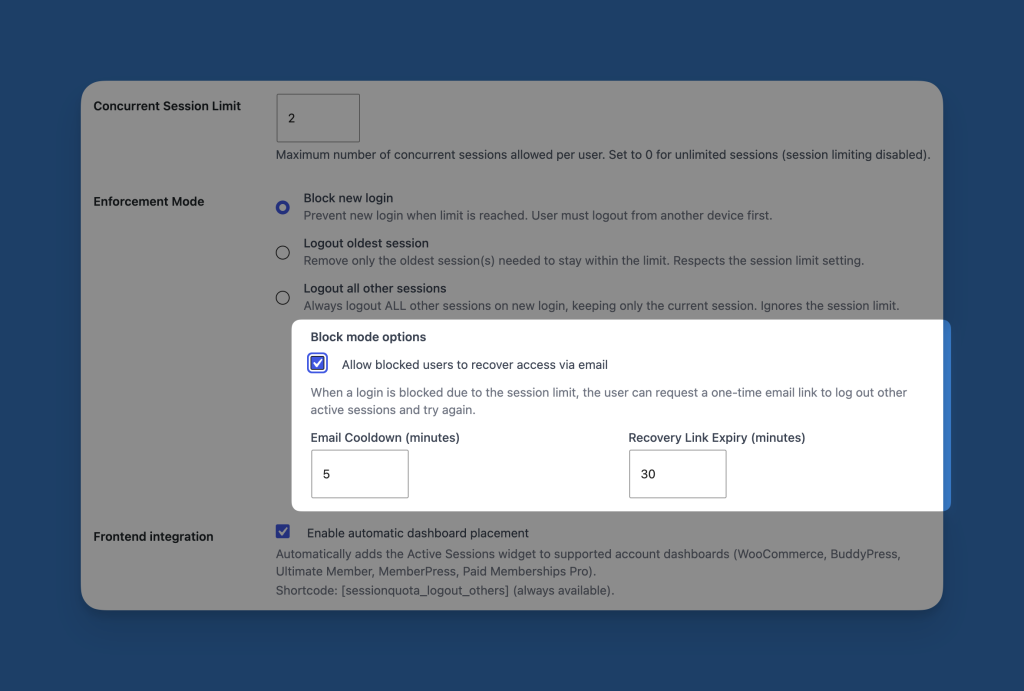
Blocked login recovery helps legitimate users regain access when Block new login mode prevents a new sign-in.
How it works #

When a user hits the session limit in Block new login mode:

  1. The new login is blocked
  2. The user can request a one-time recovery email
  3. The email contains a temporary link
  4. The user follows the link to log out other active sessions
  5. The user can try signing in again

When to use it #

Enable this feature if:

  • You want to reduce support tickets
  • Your users often switch between devices
  • You use strict login blocking but still want a self-service recovery path

Where to configure it #

Go to the General tab and select Block new login.

You can then enable block mode option:

  • Allow blocked users to recover access via email
  • Email Cooldown
  • Recovery Link Expiry

Recommended settings #

For most sites, a good starting point is:

  • Email cooldown: 5 minutes
  • Recovery link expiry: 30 minutes

Important notes #

  • This feature is only relevant when Block new login is the active enforcement mode
  • If another mode is active, blocked login recovery is not used
  • Short cooldown values can increase email volume
  • Long expiry times can make recovery links less secure

Best practices #

  • Use a clear email sender identity on your site
  • Test the full recovery flow after setup
  • Make sure your WordPress email delivery is reliable
  • Keep the cooldown long enough to discourage repeated abuse
Was this guide helpful for you?
Updated on March 17, 2026
Installation and ActivationFrontend Session Management
Table of Contents
  • How it works
  • When to use it
  • Where to configure it
  • Recommended settings
  • Important notes
  • Best practices

HandyPlugins

Explore

Home
Blog
Contact Us
My Account

Products

Magic Login Pro
Handywriter
Easy Text-to-Speech
PaddlePress Pro
WP Accessibility Toolkit

Follow Us

Twitter
Facebook
GitHub
WordPress

2026 – HandyPlugins.co | Hosted on WPHandle and optimized with Powered Cache

  • Terms and Conditions
  • Privacy Policy
  • Cookie Policy
  • Home
  • Plugins
    • Magic Login Pro
    • Handywriter
    • WP Accessibility Toolkit
    • PaddlePress Pro
    • Easy Text-to-Speech
  • Docs
  • About
  • Blog
  • Contact
We use cookies to ensure that we give you the best experience on our website. If you continue to use this site we will assume that you are happy with it.