Skip to content

HandyPlugins

  • Home
  • PluginsExpand
    • Magic Login Pro
    • Handywriter
    • WP Accessibility Toolkit
    • PaddlePress Pro
    • Easy Text-to-Speech
  • Docs
  • About
  • Blog
  • Contact
My Account
HandyPlugins
Popular Search shortcodehookemailtheredirect

Magic Login Pro

39
  • Installation & Configuration
  • Use magic login as the default login method?
  • Brute Force Protection
  • WooCommerce Integration
  • Easy Digital Downloads (EDD) Integration
  • Token Lifespan
  • Disable Magic Login for a Specific User
  • Login with Code: Flexible Passcode-Based Authentication
  • SMS Login – Passwordless Authentication with SMS
  • Magic Login REST API
  • QR Code Login
  • CLI Command
  • Add Login form to a Page
  • Reset Tokens
  • Auto Login Links
  • Token Validity
  • Login Redirect
  • Shortcode
  • Login Email Customization
  • Login Request Throttling
  • IP Check
  • Domain Restriction
  • Registration
  • Spam Protection
  • How to Add Magic Login to Any of Outgoing Emails?
  • Customize Default Messages
  • nG Firewall
  • Dynamically Adjust Token TTL
  • How to change Sender Details?
  • Disable Magic Login for specific roles
  • Customizing Login Session Duration
  • Magic Login Twilio Integration
  • Magic Login – FluentCRM Integration
  • Reset Magic Login Links for a User
  • Hooks
  • Tools – Reset, Export & Import Magic Login Settings
  • Magic Login Elementor
  • Magic Login – Security Guide
  • Per-User Login Email Limit

PaddlePress Pro

27
  • Installation & Configuration
  • How does PaddlePress PRO work?
  • Automatic account creation
  • How to set up a membership website?
  • Setup a Development Environment
  • Protect Download Files on NGINX
  • Software Licensing
  • Software Licensing API
  • Updater Implementation for WordPress Plugins
  • Updater Implementation for WordPress Themes
  • Release a New WordPress Product
  • Customer Dashboard (My Account) Page
  • Checkout Buttons
  • Custom Redirect After Successful Checkout
  • How does the domain count?
  • Emails
  • Accessing Readme through a Shortcode
  • How to Sell WordPress Products?
  • Releasing Beta Versions of a WordPress Product
  • Paddle Billing
  • Customer Dashboard
  • Membership Levels
  • Restrict Content
  • Add a Custom Payment Action
  • How to customize “Download” Button?
  • Adding Manual Payments
  • Composer Support for Private WordPress Packages

Handywriter

11
  • Installation & Configuration
  • Write a Blog Post
  • Create a Summary
  • Suggest a Title
  • Keep records of AI generated Contents
  • Grammar & Spelling Fixer
  • Plagiarism Check
  • Content Templates
  • How to create a Meta Description?
  • How to complete a sentence?
  • How does credit calculation work?

Easy Text-to-Speech

5
  • Installation & Configuration
  • Using with Block Editor
  • Using with Classic Editor
  • OpenAI Integration
  • ElevenLabs Integration

WP Accessibility Toolkit

3
  • Customization
  • Hotkeys: Quick Navigation and Efficiency
  • Do not show the accessibility toolkit on the specific page

SessionQuota Pro

3
  • Settings Overview
  • Quick Start
  • Installation and Activation

FAQ

1
  • How to Enter Your VAT Number for VAT Deduction at Checkout
  • Home
  • Docs
  • SessionQuota Pro
  • Quick Start
View Categories

Quick Start

Use this quick setup guide if you want to get SessionQuota Pro working in a few minutes.
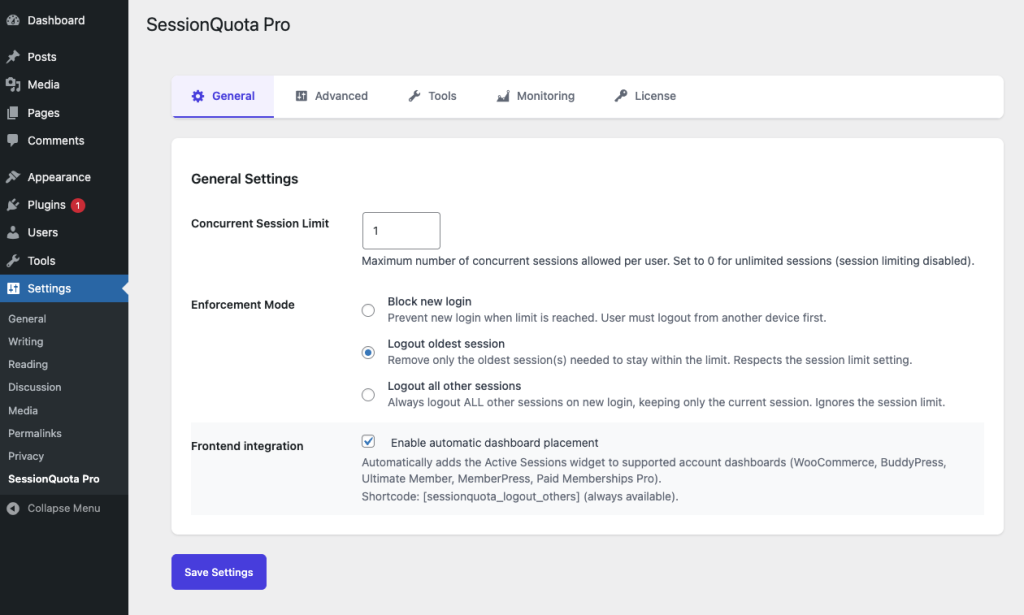
Recommended first configuration #

  1. Go to Settings -> SessionQuota Pro.
  2. Set a global session limit.
  3. Choose an enforcement mode.
  4. Save your settings.
  5. Test the behavior with two browsers or devices.

Step 1: set the global session limit #

The global session limit controls how many active sessions a user can have at once.

  • 1 means one active session per user
  • 2 means two active sessions per user
  • 0 means unlimited sessions

For most sites, start with one of these:

  • Membership or course site: 1
  • Store or client portal: 1 or 2
  • Team or editorial site: 2 or 3

Step 2: choose an enforcement mode #

Pick the behavior you want when a user reaches the limit:

  • Block new login: stop the new login attempt
  • Logout oldest session(s): make room by removing the oldest session
  • Logout all other sessions: keep only the latest session active

If you want the strictest setup, use Logout all other sessions.

Step 3: enable frontend session control if needed #

If you want users to manage their own active sessions from the frontend:

  1. Leave Enable automatic dashboard placement enabled.
  2. Or place the available shortcodes on your own account page.

See Frontend Session Management for details.

Step 4: test the setup #

Test with two different browsers or devices:

  1. Sign in as the same user on Device A.
  2. Sign in again on Device B.
  3. Confirm the result matches your selected enforcement mode.

Step 5: add advanced rules if needed #

After the basic setup works, you can add:

  • Role-based limits
  • Membership-based limits
  • User-specific overrides
  • Blocked login recovery by email
  • Monitoring and alerts

Recommended rollout path #

If you are unsure where to start, use this order:

  1. Global limit
  2. Enforcement mode
  3. Frontend session controls
  4. Advanced limits
  5. Monitoring and alerts

Was this guide helpful for you?
Updated on March 16, 2026
Settings OverviewInstallation and Activation
Table of Contents
  • Recommended first configuration
  • Step 1: set the global session limit
  • Step 2: choose an enforcement mode
  • Step 3: enable frontend session control if needed
  • Step 4: test the setup
  • Step 5: add advanced rules if needed
  • Recommended rollout path

HandyPlugins

Explore

Home
Blog
Contact Us
My Account

Products

Magic Login Pro
Handywriter
Easy Text-to-Speech
PaddlePress Pro
WP Accessibility Toolkit

Follow Us

Twitter
Facebook
GitHub
WordPress

2026 – HandyPlugins.co | Hosted on WPHandle and optimized with Powered Cache

  • Terms and Conditions
  • Privacy Policy
  • Cookie Policy
  • Home
  • Plugins
    • Magic Login Pro
    • Handywriter
    • WP Accessibility Toolkit
    • PaddlePress Pro
    • Easy Text-to-Speech
  • Docs
  • About
  • Blog
  • Contact
We use cookies to ensure that we give you the best experience on our website. If you continue to use this site we will assume that you are happy with it.