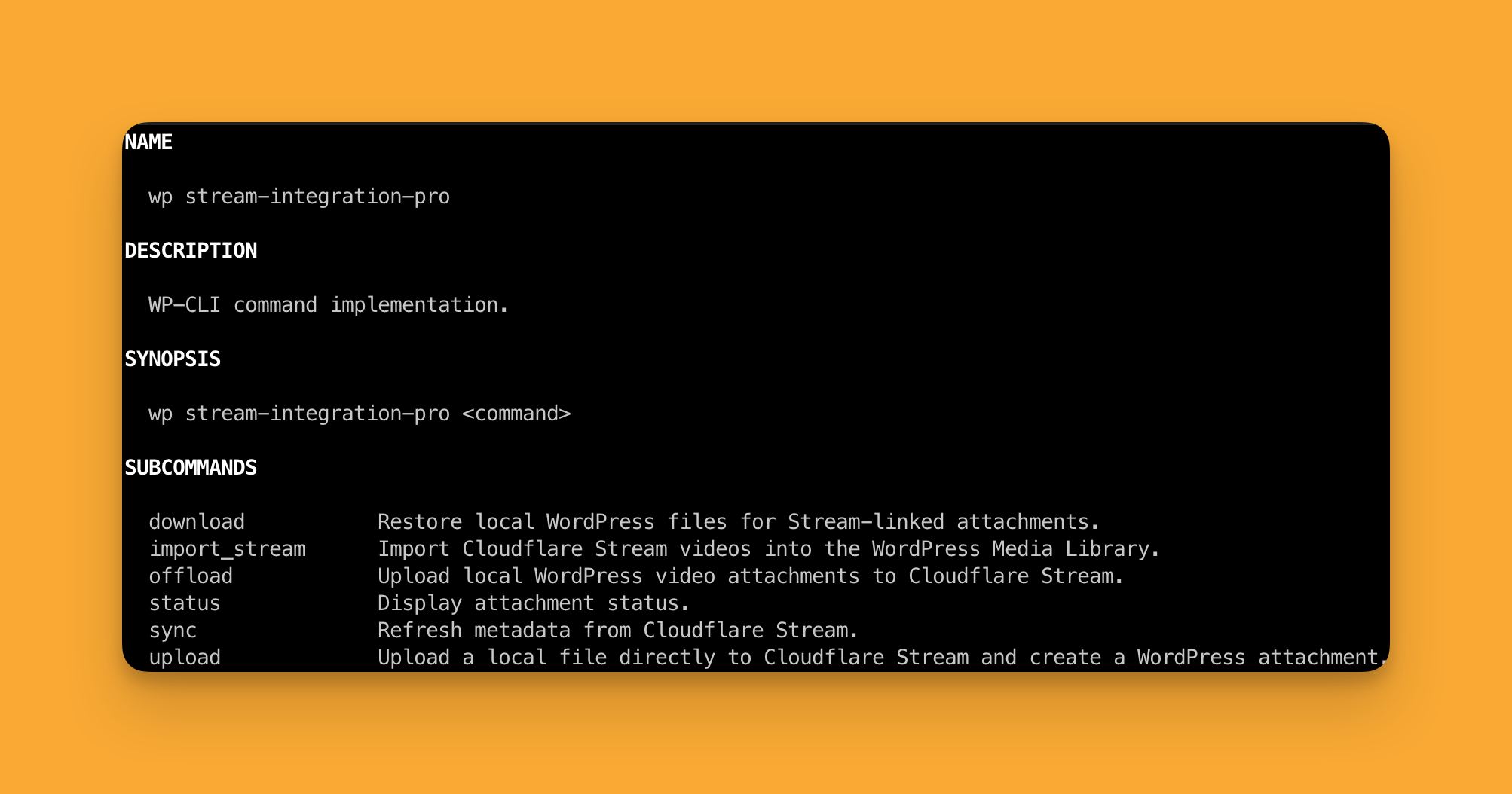
Stream Integration Pro includes a WP-CLI namespace:
wp stream-integration-proUse the CLI when you want direct, scriptable control over uploads, imports, syncs, and local restore workflows.
When to Use the CLI #
The CLI is especially useful for:
- bulk migrations
- importing existing Stream libraries into WordPress
- restoring local files in batches
- scripted media operations
- operational troubleshooting
Command Groups #
1. Upload a local file directly to Stream #
This creates:
- a Cloudflare Stream video
- a new WordPress attachment
wp stream-integration-pro upload /full/path/to/video.mp4With a custom title:
wp stream-integration-pro upload /full/path/to/video.mp4 --title="Homepage hero video"2. Offload existing WordPress attachments to Stream #
Use offload when the file already exists in the WordPress Media Library.
One attachment:
wp stream-integration-pro offload 123Several attachments:
wp stream-integration-pro offload --ids=123,124,125All matching local videos:
wp stream-integration-pro offload --all --limit=20Delete the local file after Stream is ready:
wp stream-integration-pro offload 123 --delete-localQueue instead of processing immediately:
wp stream-integration-pro offload --all --limit=20 --queued3. Download a local copy from Stream #
Use download when the attachment already exists in WordPress and is linked to Stream.
One attachment:
wp stream-integration-pro download 123Several attachments:
wp stream-integration-pro download --ids=123,124All matching Stream-linked attachments:
wp stream-integration-pro download --all --limit=20Queue the work instead of running it immediately:
wp stream-integration-pro download 123 --queued4. Sync Stream metadata #
Use sync when you want WordPress to refresh the latest Stream metadata for existing attachments.
wp stream-integration-pro sync 123wp stream-integration-pro sync --ids=123,124wp stream-integration-pro sync --all --limit=205. Check attachment status #
wp stream-integration-pro status 123wp stream-integration-pro status --ids=123,124wp stream-integration-pro status --all --limit=20Import Existing Stream Videos into WordPress #
Use import-stream when the video already exists in Cloudflare Stream but WordPress does not yet have an attachment for it.
Import one Stream video by UID #
wp stream-integration-pro import-stream b05394e7700fb314818990c4d73ee58eImport several Stream videos by UID #
wp stream-integration-pro import-stream --uids=b05394e7700fb314818990c4d73ee58e,ee7024855d6fImport all Stream videos that WordPress does not know about yet #
wp stream-integration-pro import-stream --all --limit=20Filter by search term:
wp stream-integration-pro import-stream --all --search="foobar" --limit=20Import and also restore a local file #
wp stream-integration-pro import-stream b05394e7700fb314818990c4d73ee58e --download-localBulk version:
wp stream-integration-pro import-stream --all --limit=10 --download-localCommon Flags #
--queued #
Available on:
offloaddownloadsync
Use this when you want Action Scheduler to handle the work in the background.
--timeout=<seconds> #
Use this when a command may need extra time for remote processing.
Example:
wp stream-integration-pro download 123 --timeout=600--limit=<n> #
Use this on --all workflows so you can process large libraries in smaller batches.
Example:
wp stream-integration-pro import-stream --all --limit=50Recommended CLI Workflows #
Bring orphaned Stream videos into WordPress #
wp stream-integration-pro import-stream --all --limit=50Bring orphaned Stream videos into WordPress and also restore local files #
wp stream-integration-pro import-stream --all --limit=20 --download-localMove local WordPress videos into Stream but keep local files #
wp stream-integration-pro offload --all --limit=20Move local WordPress videos into Stream and then remove local files #
wp stream-integration-pro offload --all --limit=20 --delete-localNotes #
downloadworks on existing WordPress attachments that are already linked to Stream.import-streamis the command to use when the Stream video exists first and WordPress has no attachment yet.- Destructive cleanup actions are managed from the WordPress admin UI under
Media > Cloudflare Stream > Tools. - Queue-heavy operations may be easier to monitor from the plugin’s
Toolstab inside wp-admin.