This guide explains how licensing and automatic updates work.
What the License Key Does #
The license key enables automatic plugin updates.
It does not change how Cloudflare Stream playback works. It only affects licensing and update delivery.
Where to Manage It #
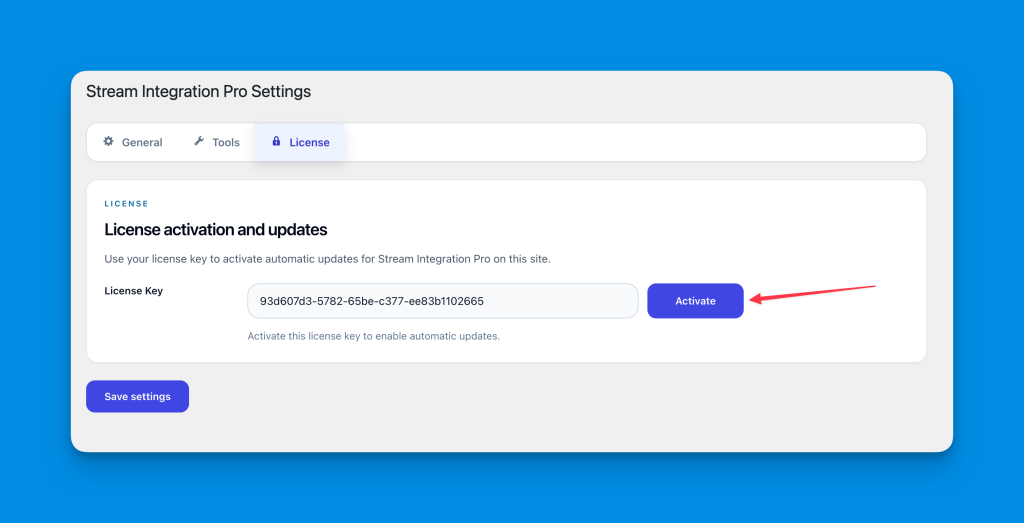
Open:
Media > Cloudflare Stream > License
If the plugin is network-activated in multisite, the license is managed in:
Network Admin > Settings > Stream Integration Pro
Activate a License #
- Enter your license key.
- Click
Activate. - Wait for the page to refresh and show the current status.
If the license is valid, the plugin will show a success message and, when available, the expiration date.
Deactivate a License #
If the current license is already active, the button changes to Deactivate.
Use this when you want to remove the current site or network from that license.
License Key Storage #
If the license key is entered in the admin UI:
- it is stored encrypted in the database
If the license key is defined in configuration:
- the UI is locked or hidden
- the database copy is not used
Config-Managed Licenses #
You can centrally manage the license key in configuration.
When that is done:
- end users do not need to activate it manually
- the license UI is hidden or locked
- updates still use the configured key
Troubleshooting Licensing #
Common reasons activation can fail:
- invalid license key
- expired license
- site URL is not allowed for the key
- license server temporarily unavailable
If you keep seeing licensing errors, check:
- Troubleshooting
Multisite Licensing #
When the plugin is network-activated:
- the network admin manages the shared license
- the plugin uses the network context for licensing and updater requests
- subsites do not manage licensing independently
For details:
- Multisite Guide