Skip to content

HandyPlugins

  • Home
  • PluginsExpand
    • Magic Login Pro
    • WP Accessibility Toolkit
    • PaddlePress Pro
    • Easy Text-to-Speech
    • Handywriter
    • SessionQuota Pro
  • Docs
  • About
  • Blog
  • Contact
My Account
HandyPlugins
Popular Search shortcodehookemailtheredirect

Magic Login Pro

40
  • Installation & Configuration
  • Use magic login as the default login method?
  • Brute Force Protection
  • WooCommerce Integration
  • Easy Digital Downloads (EDD) Integration
  • Token Lifespan
  • Disable Magic Login for a Specific User
  • Login with Code: Flexible Passcode-Based Authentication
  • SMS Login – Passwordless Authentication with SMS
  • Magic Login REST API
  • QR Code Login
  • CLI Command
  • Add Login form to a Page
  • Reset Tokens
  • Auto Login Links
  • Token Validity
  • Login Redirect
  • Shortcode
  • Login Email Customization
  • Login Request Throttling
  • IP Check
  • Domain Restriction
  • Registration
  • Spam Protection
  • How to Add Magic Login to Any of Outgoing Emails?
  • Customize Default Messages
  • nG Firewall
  • Dynamically Adjust Token TTL
  • How to change Sender Details?
  • Disable Magic Login for specific roles
  • Customizing Login Session Duration
  • Magic Login Twilio Integration
  • Magic Login – FluentCRM Integration
  • Reset Magic Login Links for a User
  • Tools – Reset, Export & Import Magic Login Settings
  • Magic Login Elementor
  • Magic Login – Security Guide
  • Per-User Login Email Limit
  • Two-Factor Authentication (2FA) Compatibility Guide
  • Hooks

PaddlePress Pro

27
  • Installation & Configuration
  • How does PaddlePress PRO work?
  • Automatic account creation
  • How to set up a membership website?
  • Setup a Development Environment
  • Protect Download Files on NGINX
  • Software Licensing
  • Software Licensing API
  • Updater Implementation for WordPress Plugins
  • Updater Implementation for WordPress Themes
  • Release a New WordPress Product
  • Customer Dashboard (My Account) Page
  • Checkout Buttons
  • Custom Redirect After Successful Checkout
  • How does the domain count?
  • Emails
  • Accessing Readme through a Shortcode
  • How to Sell WordPress Products?
  • Releasing Beta Versions of a WordPress Product
  • Paddle Billing
  • Customer Dashboard
  • Membership Levels
  • Restrict Content
  • Add a Custom Payment Action
  • How to customize “Download” Button?
  • Adding Manual Payments
  • Composer Support for Private WordPress Packages

Handywriter

11
  • Installation & Configuration
  • Write a Blog Post
  • Create a Summary
  • Suggest a Title
  • Keep records of AI generated Contents
  • Grammar & Spelling Fixer
  • Plagiarism Check
  • Content Templates
  • How to create a Meta Description?
  • How to complete a sentence?
  • How does credit calculation work?

Easy Text-to-Speech

5
  • Installation & Configuration
  • Using with Block Editor
  • Using with Classic Editor
  • OpenAI Integration
  • ElevenLabs Integration

WP Accessibility Toolkit

3
  • Customization
  • Hotkeys: Quick Navigation and Efficiency
  • Do not show the accessibility toolkit on the specific page

Stream Integration Pro

7
  • Getting Started
  • Media Library Workflows
  • License and Updates
  • Troubleshooting
  • Tools and Cleanup
  • Multisite Guide
  • CLI Command

SessionQuota Pro

12
  • Quick Start
  • Installation and Activation
  • Settings Overview
  • Enforcement Modes
  • Limits and Priority
  • Frontend Session Management
  • Blocked Login Recovery
  • Admin Tools
  • Monitoring and Alerts
  • Multisite Guide
  • WP-CLI Guide
  • Troubleshooting

FAQ

1
  • How to Enter Your VAT Number for VAT Deduction at Checkout
  • Home
  • Docs
  • Stream Integration Pro
  • CLI Command
View Categories

CLI Command

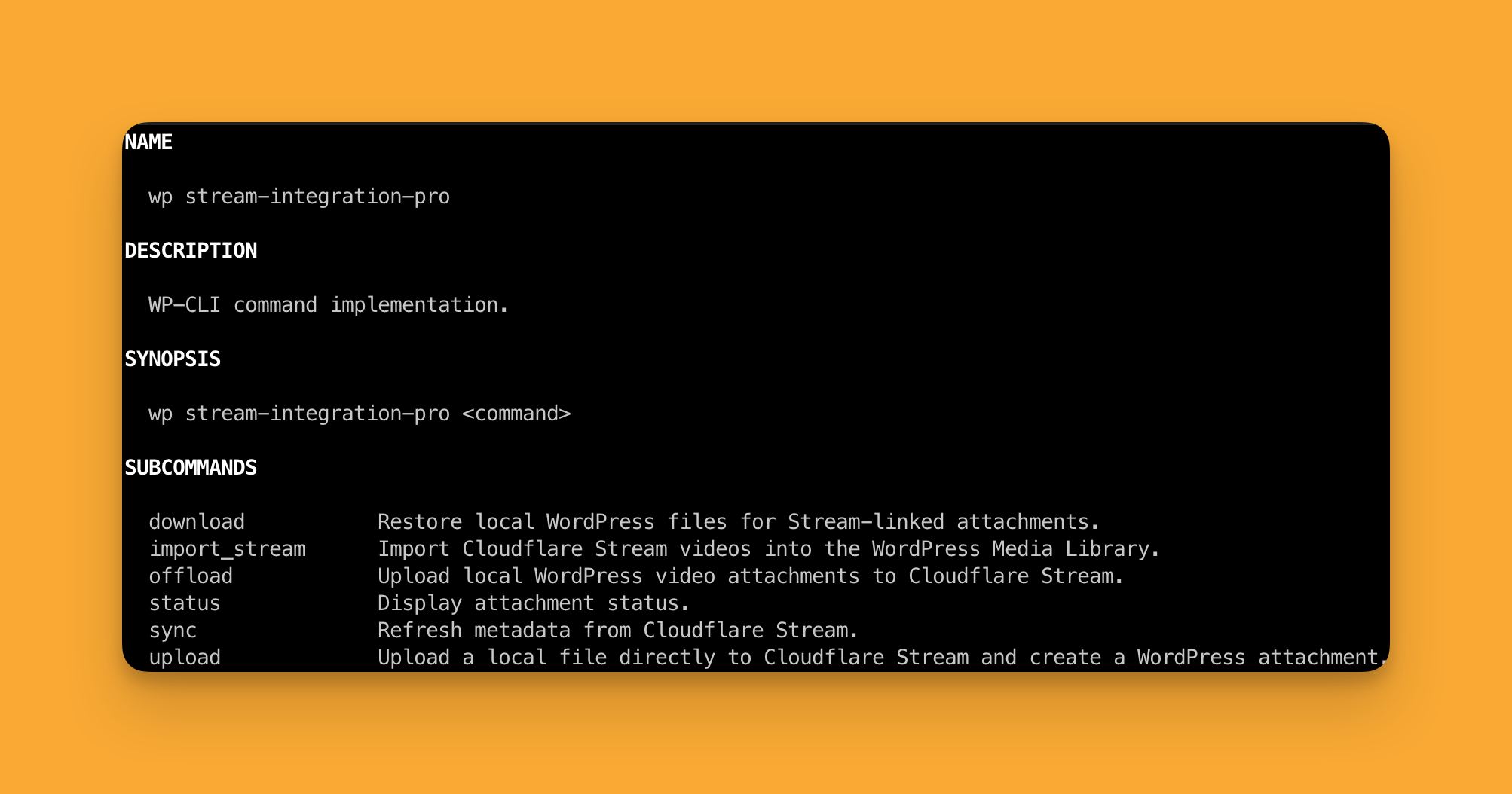
Stream Integration Pro includes a WP-CLI namespace:

wp stream-integration-pro

Use the CLI when you want direct, scriptable control over uploads, imports, syncs, and local restore workflows.

When to Use the CLI #

The CLI is especially useful for:

  • bulk migrations
  • importing existing Stream libraries into WordPress
  • restoring local files in batches
  • scripted media operations
  • operational troubleshooting

Command Groups #

1. Upload a local file directly to Stream #

This creates:

  • a Cloudflare Stream video
  • a new WordPress attachment
wp stream-integration-pro upload /full/path/to/video.mp4

With a custom title:

wp stream-integration-pro upload /full/path/to/video.mp4 --title="Homepage hero video"

2. Offload existing WordPress attachments to Stream #

Use offload when the file already exists in the WordPress Media Library.

One attachment:

wp stream-integration-pro offload 123

Several attachments:

wp stream-integration-pro offload --ids=123,124,125

All matching local videos:

wp stream-integration-pro offload --all --limit=20

Delete the local file after Stream is ready:

wp stream-integration-pro offload 123 --delete-local

Queue instead of processing immediately:

wp stream-integration-pro offload --all --limit=20 --queued

3. Download a local copy from Stream #

Use download when the attachment already exists in WordPress and is linked to Stream.

One attachment:

wp stream-integration-pro download 123

Several attachments:

wp stream-integration-pro download --ids=123,124

All matching Stream-linked attachments:

wp stream-integration-pro download --all --limit=20

Queue the work instead of running it immediately:

wp stream-integration-pro download 123 --queued

4. Sync Stream metadata #

Use sync when you want WordPress to refresh the latest Stream metadata for existing attachments.

wp stream-integration-pro sync 123
wp stream-integration-pro sync --ids=123,124
wp stream-integration-pro sync --all --limit=20

5. Check attachment status #

wp stream-integration-pro status 123
wp stream-integration-pro status --ids=123,124
wp stream-integration-pro status --all --limit=20

Import Existing Stream Videos into WordPress #

Use import-stream when the video already exists in Cloudflare Stream but WordPress does not yet have an attachment for it.

Import one Stream video by UID #

wp stream-integration-pro import-stream b05394e7700fb314818990c4d73ee58e

Import several Stream videos by UID #

wp stream-integration-pro import-stream --uids=b05394e7700fb314818990c4d73ee58e,ee7024855d6f

Import all Stream videos that WordPress does not know about yet #

wp stream-integration-pro import-stream --all --limit=20

Filter by search term:

wp stream-integration-pro import-stream --all --search="foobar" --limit=20

Import and also restore a local file #

wp stream-integration-pro import-stream b05394e7700fb314818990c4d73ee58e --download-local

Bulk version:

wp stream-integration-pro import-stream --all --limit=10 --download-local

Common Flags #

--queued #

Available on:

  • offload
  • download
  • sync

Use this when you want Action Scheduler to handle the work in the background.

--timeout=<seconds> #

Use this when a command may need extra time for remote processing.

Example:

wp stream-integration-pro download 123 --timeout=600

--limit=<n> #

Use this on --all workflows so you can process large libraries in smaller batches.

Example:

wp stream-integration-pro import-stream --all --limit=50

Recommended CLI Workflows #

Bring orphaned Stream videos into WordPress #

wp stream-integration-pro import-stream --all --limit=50

Bring orphaned Stream videos into WordPress and also restore local files #

wp stream-integration-pro import-stream --all --limit=20 --download-local

Move local WordPress videos into Stream but keep local files #

wp stream-integration-pro offload --all --limit=20

Move local WordPress videos into Stream and then remove local files #

wp stream-integration-pro offload --all --limit=20 --delete-local

Notes #

  • download works on existing WordPress attachments that are already linked to Stream.
  • import-stream is the command to use when the Stream video exists first and WordPress has no attachment yet.
  • Destructive cleanup actions are managed from the WordPress admin UI under Media > Cloudflare Stream > Tools.
  • Queue-heavy operations may be easier to monitor from the plugin’s Tools tab inside wp-admin.
Was this guide helpful for you?
Updated on April 13, 2026
Multisite GuideGetting Started
Table of Contents
  • When to Use the CLI
  • Command Groups
    • 1. Upload a local file directly to Stream
    • 2. Offload existing WordPress attachments to Stream
    • 3. Download a local copy from Stream
    • 4. Sync Stream metadata
    • 5. Check attachment status
  • Import Existing Stream Videos into WordPress
    • Import one Stream video by UID
    • Import several Stream videos by UID
    • Import all Stream videos that WordPress does not know about yet
    • Import and also restore a local file
  • Common Flags
    • --queued
    • --timeout=
    • --limit=
  • Recommended CLI Workflows
    • Bring orphaned Stream videos into WordPress
    • Bring orphaned Stream videos into WordPress and also restore local files
    • Move local WordPress videos into Stream but keep local files
    • Move local WordPress videos into Stream and then remove local files
  • Notes

HandyPlugins

Explore

Home
Blog
Contact Us
My Account

Products

Magic Login Pro
Handywriter
Easy Text-to-Speech
PaddlePress Pro
WP Accessibility Toolkit

Follow Us

Twitter
Facebook
GitHub
WordPress

2026 – HandyPlugins.co | Hosted on WPHandle and optimized with Powered Cache

  • Terms and Conditions
  • Privacy Policy
  • Cookie Policy
  • Home
  • Plugins
    • Magic Login Pro
    • WP Accessibility Toolkit
    • PaddlePress Pro
    • Easy Text-to-Speech
    • Handywriter
    • SessionQuota Pro
  • Docs
  • About
  • Blog
  • Contact
We use cookies to ensure that we give you the best experience on our website. If you continue to use this site we will assume that you are happy with it.